18 Best AI Design Tools for UI/UX Designers in 2026
Last Update:
September 1, 2026
AI design tools can now generate interfaces, analyze research, create assets, and even turn ideas into working front-end experiences. But choosing the right one is getting harder.
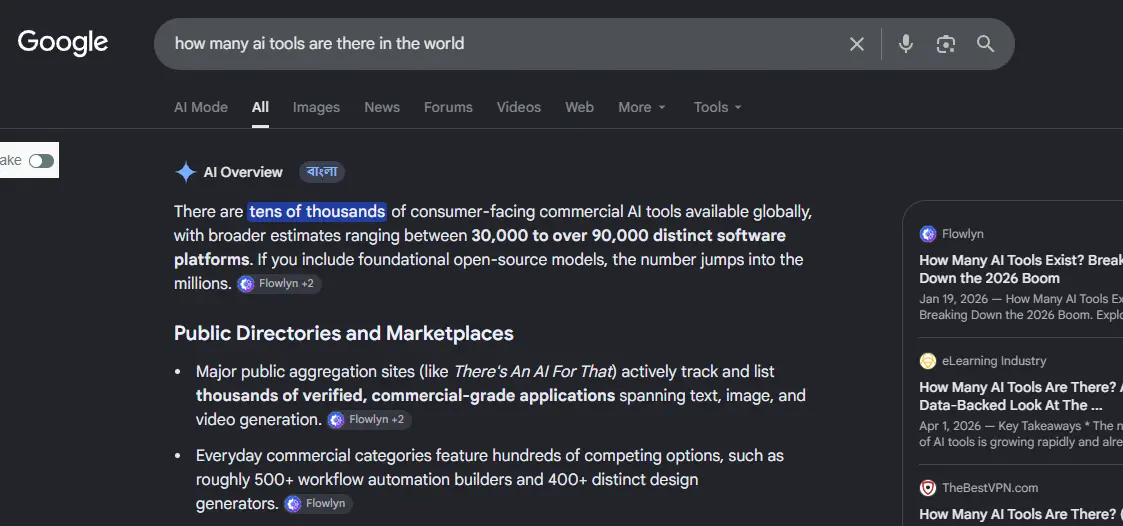
Google’s AI Overview estimates there are 30,000 to 90,000+ commercial AI software platforms globally, including roughly 400 design generators.
So, instead of listing everything, we focused on the tools most useful for product designers across UI design, UX research, design assets, and visual IDEs.
What are AI design tools and why should product designers use them?
AI design tools are software that use AI to help with parts of the design process, from generating wireframes and UI concepts to analyzing research, creating assets, and producing working prototypes.
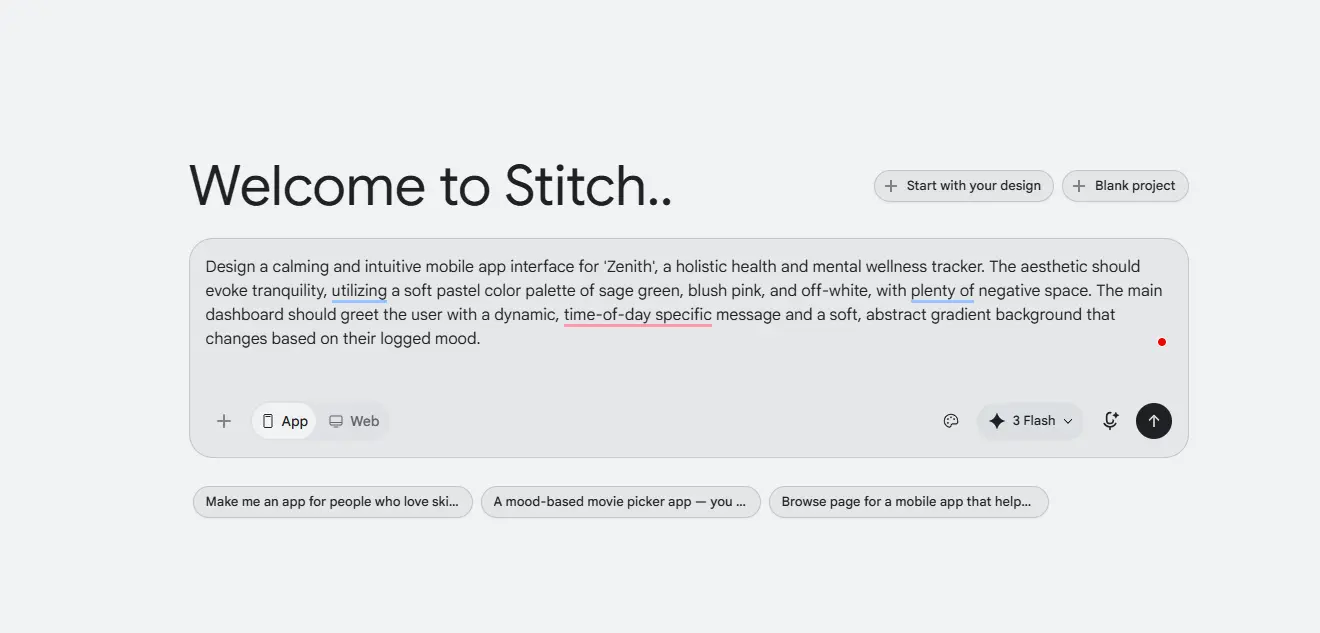
Take Google Stitch as a simple example. We gave it a prompt for a calming mobile wellness app, including the product idea, visual direction, colors, and dashboard requirements.
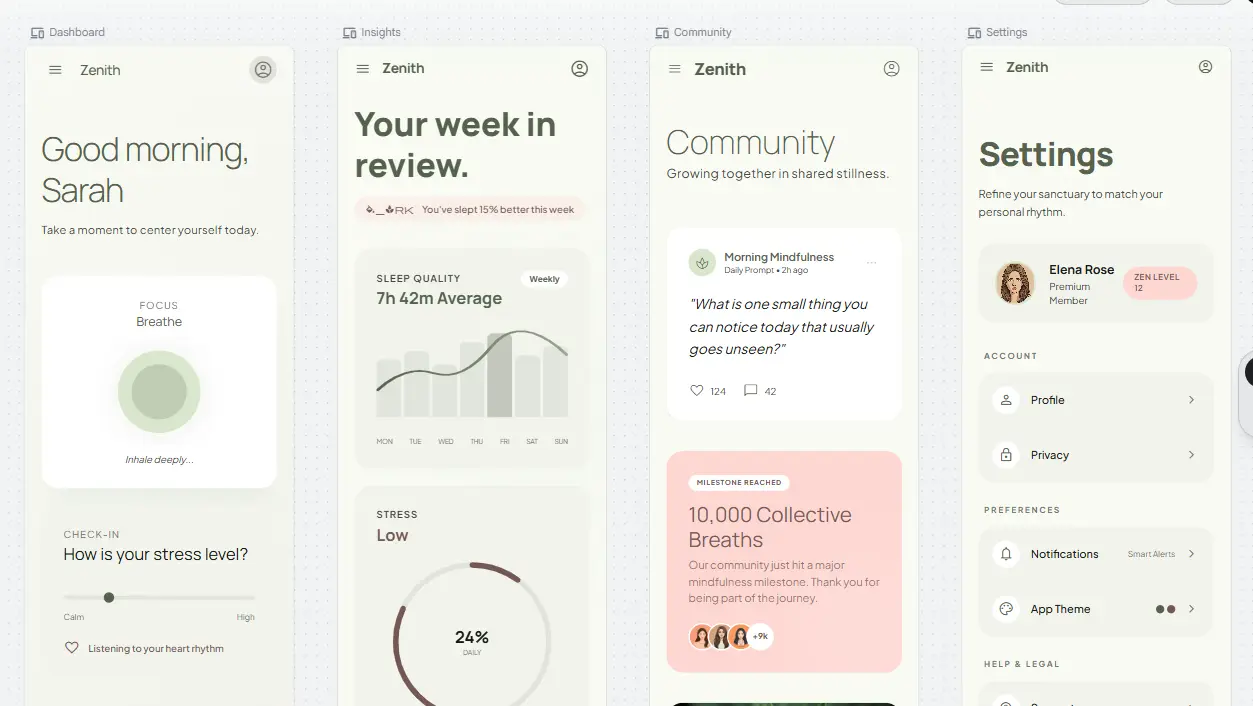
From that single prompt, Stitch generated multiple mobile screens for the product, including the dashboard, insights, community, and settings interfaces.
That’s where these tools become useful. Instead of starting every exploration from a blank canvas, designers can get an initial direction in minutes and spend more time refining the experience, validating decisions, and solving the actual user problem. AI doesn’t remove the need for product designers. It removes some of the repetitive work around them.
How We Selected the Best AI Design Tools
AI tools clearly save time, but that doesn’t mean every output is useful. In Figma’s 2025 survey of 2,500 designers and developers, 78% said AI significantly improves their efficiency, yet only 32% said they can rely on AI-generated output in their work.
That gap shaped how we selected the tools on this list.
We focused on tools that perform well across five practical criteria:
Real design value: Solves an actual product design task.
Output quality: Produces something worth refining, not rebuilding.
Time saved: Cuts meaningful repetitive work.
Workflow compatibility: Fits alongside existing design and development tools.
Learning curve: Delivers value without weeks of setup or training.
We then grouped the strongest options by where they fit: UI design, UX research, design assets, and visual IDEs.
Best AI Tools for UI Design at a Glance
Here’s a quick comparison of the 18 AI design tools we recommend for product designers in 2026:
Tool
Category
Best For
Free Plan
MCP Support
Lowest Paid Plan ($)
Google Stitch
UI Design
Interfaces
Free access
Native MCP server
N/A
Figma AI / Figma Make
UI Design
Prototyping
Free plan
Native MCP server + connectors
$16/mo
Framer AI
UI Design
Websites
Free plan
Third-party MCP
$10/mo
Uizard Autodesigner
UI Design
Wireframing
Free plan
No native MCP found
$12/mo
Visily
UI Design
Mockups
Free plan
Native MCP server
$11/mo
Relume AI
UI Design
Sitemaps
Free plan
Native Library MCP
$18/mo
v0
UI Design
Frontends
Free plan
Native MCP integrations
$20/mo
Lovable
UI Design
Apps
Free plan
Native MCP server + connectors
$25/mo
UX Pilot
UI Design
Flows
Free plan
No native MCP found
$14/mo
Claude Design
UI Design
Exploration
No
Native MCP server
$17/mo
Maze AI
UX Research
Testing
30 days
Native MCP server (Beta)
$99/mo
Miro AI
UX Research
Mapping
14 days
Native MCP server
$8/mo
ChatGPT
UX Research
Synthesis
Free plan
Remote MCP / MCP apps
$20/mo
Claude
UX Research
Analysis
Free plan
Remote MCP integrations
$17/mo
Canva AI
Design Assets
Graphics
Free plan + trial
Native Canva MCP
$12/mo
Adobe Firefly
Design Assets
Imagery
Free plan + trial
Adobe MCP connectors
$9.99/mo
Antigravity IDE
Visual IDE
Development
Free plan
Native MCP client
$19.99/mo
Cursor
Visual IDE
Coding
Free plan
Native MCP support
$20/mo
18 AI Design Tools for Different Design Tasks
A single list of AI tools isn’t very useful because product designers don’t use AI for just one job.
So we’ve grouped the tools by where they fit in the design workflow. This makes it easier to skip the categories you don’t need and focus on the ones that can actually improve your work.
You’ll find four groups:
Direct UI Design Tools: Best for product and UI designers creating interfaces, wireframes, and prototypes.
AI Tools for UX Research: Best for UX researchers, product designers, and teams analyzing interviews, feedback, and user behavior.
AI Tools for Design Assets: Best for designers who need images, graphics, illustrations, or other visual assets.
IDEs with Integrated Visual Editors: Best for designers, developers, and product teams that want to move from visual concepts to working interfaces faster.
You don’t need tools from every category. Start with the part of your workflow where AI can remove the most repetitive work.
10 Selected AI Tools for Direct UI Design
This category is for designers who want AI to help create the interface itself, not just brainstorm ideas around it.
1. Google Stitch
Quick Facts
AI Usage Limit: 350 Standard + 200 Experimental generations/month*
Best For: Turning prompts and references into editable UI concepts and prototypes
Generation Limit: Up to 5 connected screens from one prompt
Export Options: Figma, HTML/CSS, AI Studio, Antigravity
AI Models: Gemini 3
Version History: Iterations remain on canvas; no published retention window
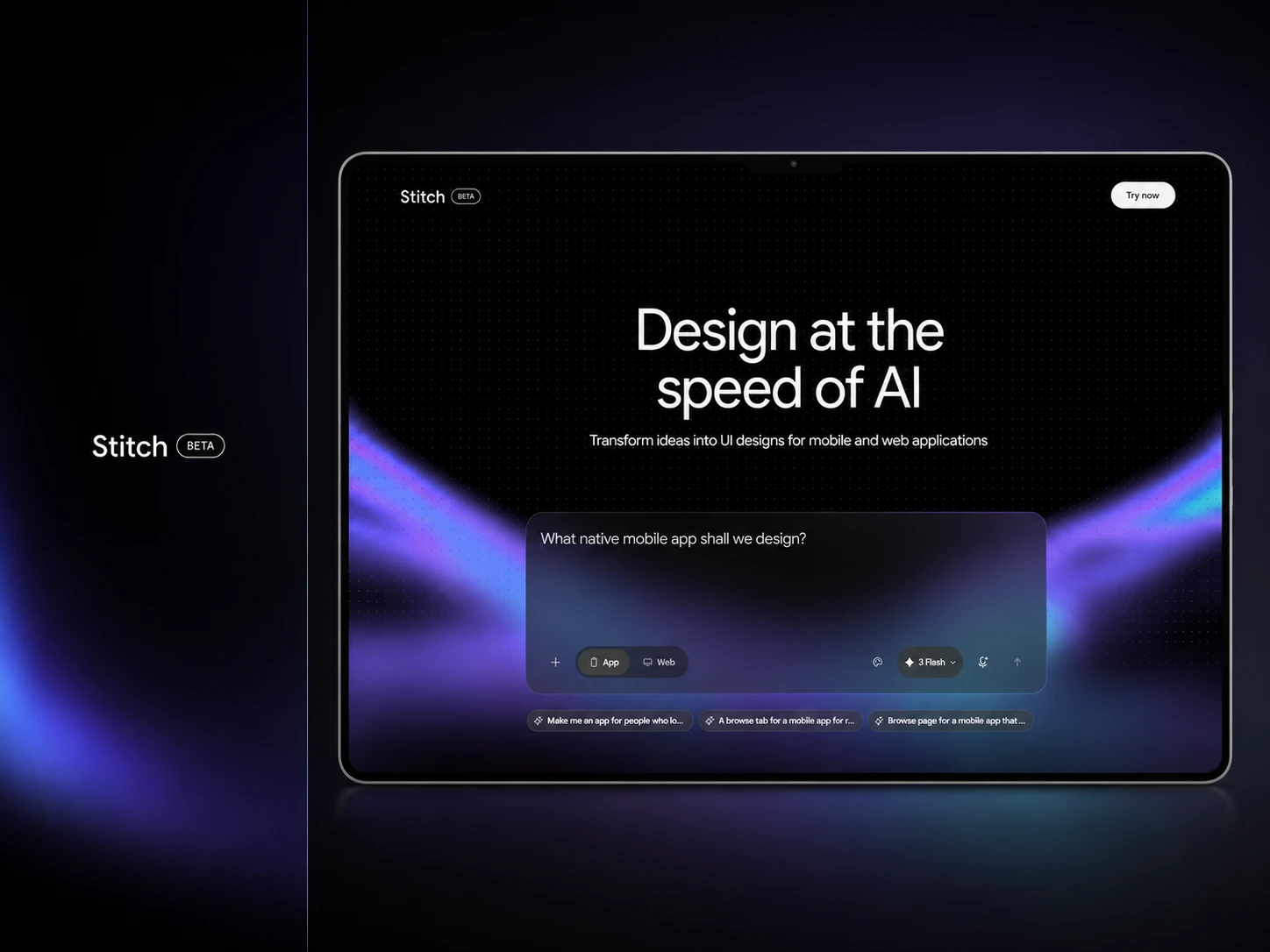
Google Stitch is Google Labs’ AI-native design canvas for generating and refining high-fidelity interfaces. Beyond prompt-to-UI, it supports images, code, voice-based iteration, interactive prototypes, reusable design rules through DESIGN.md, and an MCP server for connecting designs with development workflows.
Pricing
Free: Up to 350 Standard + 200 Experimental generations/month
Paid Stitch Plan: Not currently available
Google AI Pro/Ultra: No separate higher Stitch quota is currently documented
It moves quickly from rough product ideas to connected, editable interface concepts.
2. Figma AI / Figma Make
Quick Facts
AI Usage Limit: 500 credits/month on Starter; 3,000/month on Professional Full seats
Best For: Turning existing designs or prompts into functional prototypes and web apps
Generation Limit: No fixed limit; credit use varies by model, task complexity, and context
Export Options: Editable Figma layers, published web apps, local code workflows
AI Models: Gemini 3.6 Flash, Gemini 3.1 Pro, Claude Sonnet 4.6, Claude Opus, GPT-5.6
Version History: Automatically creates restorable versions whenever you or Figma AI edit the file
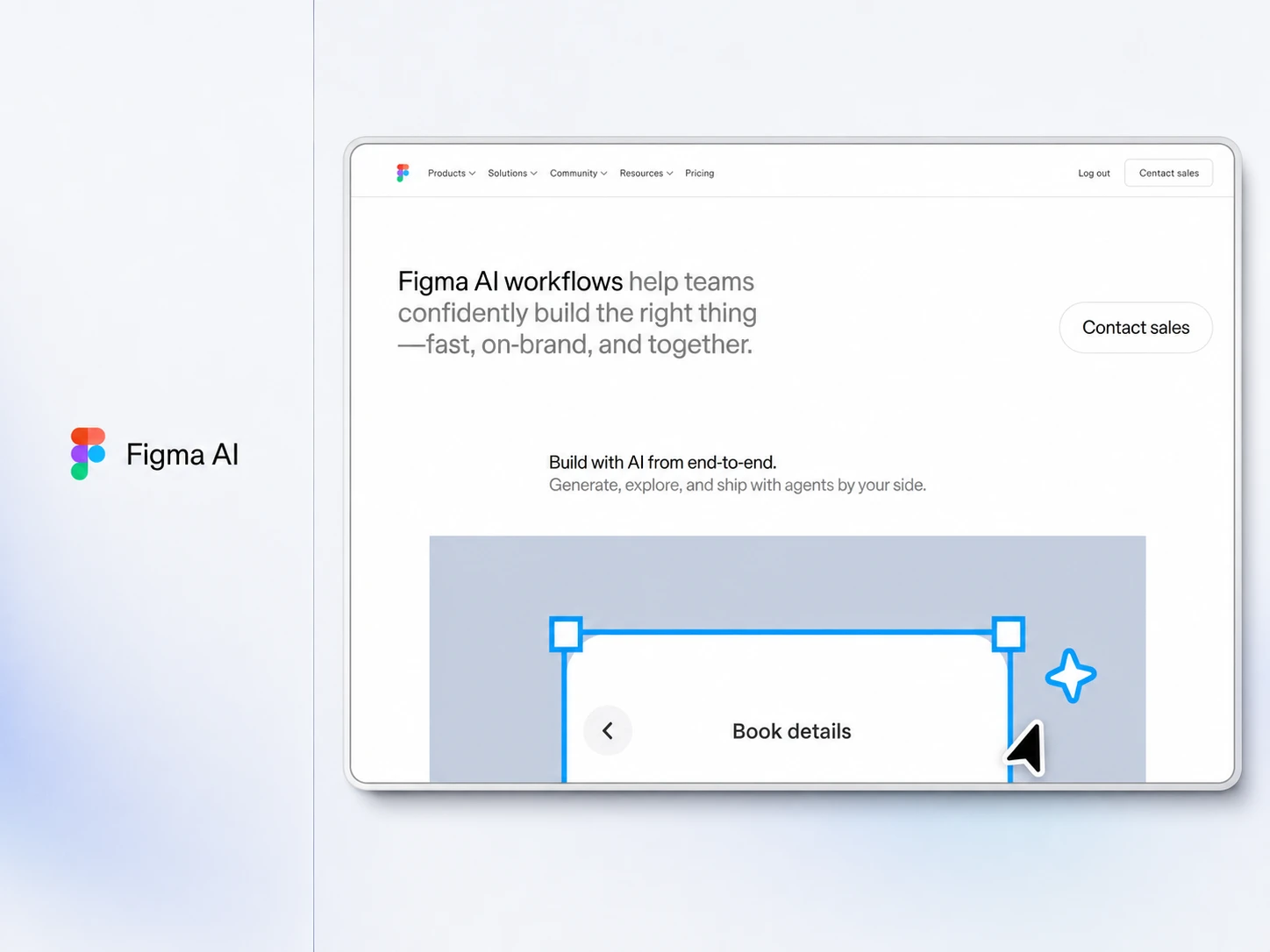
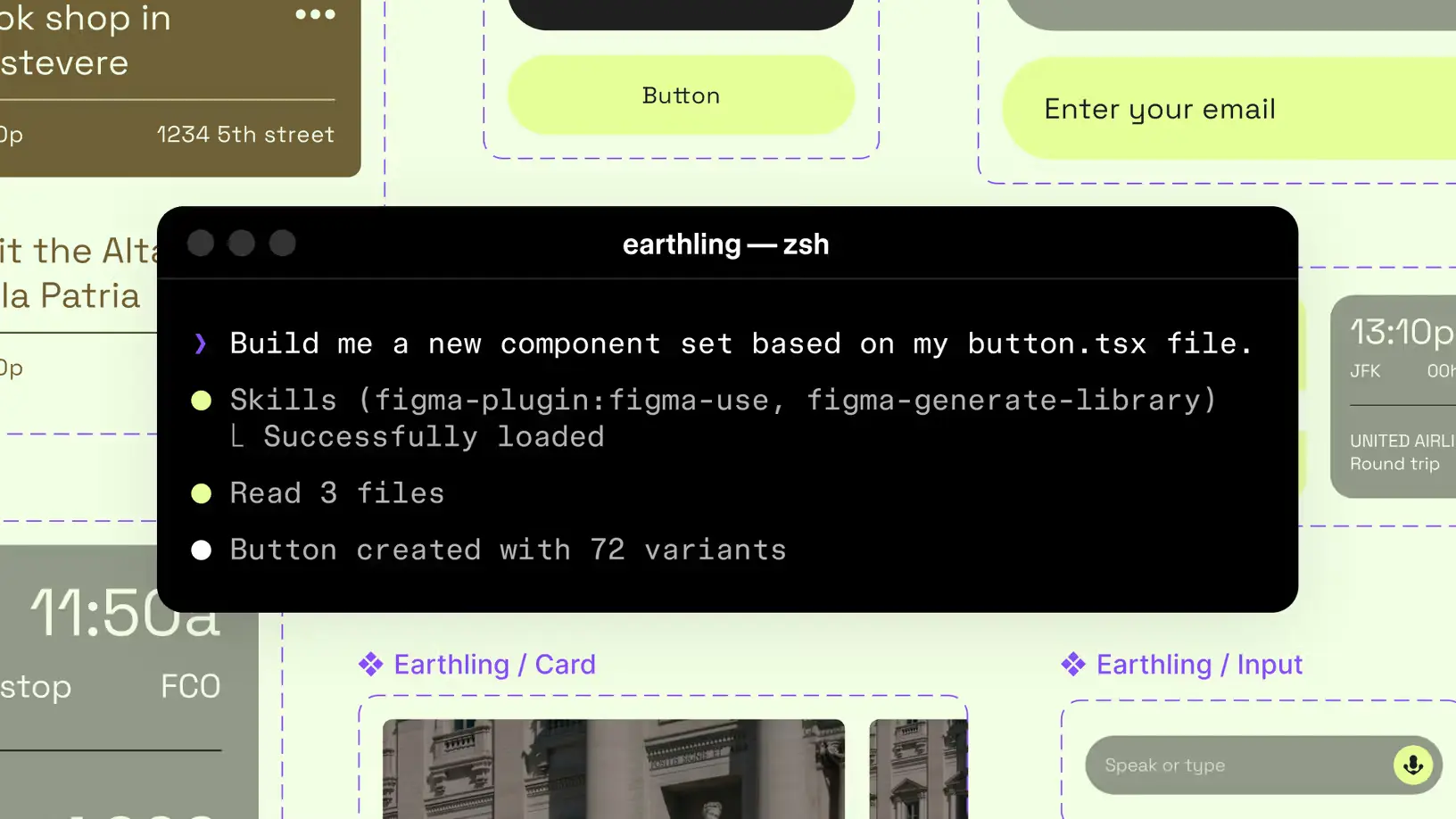
Figma Make sits closer to the actual product design workflow than most standalone UI generators. You can bring existing Figma designs and components into a prompt, generate working interactions, add backend support through Supabase, and copy the resulting interface back into Figma Design as editable layers.
Pricing
Starter: Free - 150 AI credits/day, up to 500/month
Professional Full Seat: $16/month - 3,000 AI credits/month
Organization Full Seat: $55/month, billed annually - 3,500 AI credits/month
Enterprise Full Seat: $90/month, billed annually - 4,250 AI credits/month
Extra Credits: Additional AI credits available as paid add-ons
Reviews & Ratings
G2: 4.7/5 (1,586 reviews)
Capterra: 4.7/5 (874 reviews)
Product Hunt: 4.9/5 (1,545 reviews)
What We Like
It keeps AI generation inside the same design, prototype, and handoff ecosystem.
3. Framer AI
Quick Facts
AI Usage Limit: Basic includes 1,000 credits/month; Pro includes 3,000
Best For: Generating and publishing responsive marketing websites directly from AI
Generation Limit: No fixed count; generations consume credits based on complexity and model
Export Options: PNG, JPG, and direct publishing through Framer
AI Models: Sonnet 5, Opus 4.7, GPT-5.5, GPT-5.6 Sol/Terra, Fable 5
Version History: Snapshots every 5 minutes initially, hourly after four hours, then daily
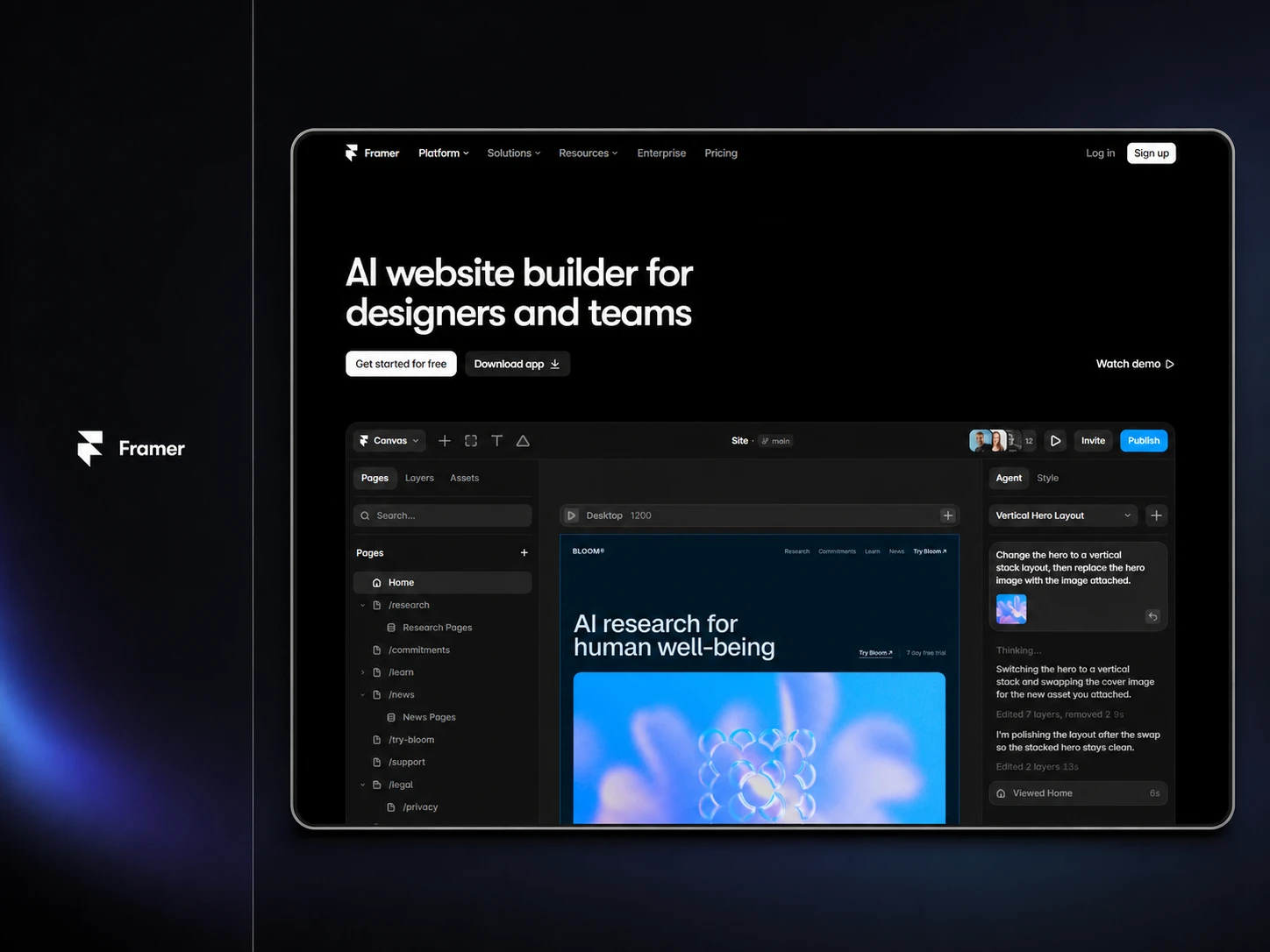
Framer’s Agent can do more than generate a landing page. It can create responsive layouts, edit copy, organize CMS content, translate sites, add interactions, and audit issues such as broken links or inconsistent styling. And because the output stays inside Framer, you can continue editing and publish it without rebuilding elsewhere.
Pricing
Free: 500 AI credits/month
Basic: $10/month, includes 1,000 AI credits/month
Pro: $30/month, includes 3,000 AI credits/month
Enterprise: Custom pricing with custom AI credits
Extra Credits: Paid credit add-ons available
Reviews & Ratings
Product Hunt: 4.8/5 (261 reviews)
G2: 4.5/5 (144 reviews)
Capterra: 4.3/5 (32 reviews)
What We Like
It turns AI-generated pages into responsive, publishable websites without leaving the canvas.
4. Uizard Autodesigner
Quick Facts
AI Usage Limit: Free: 3 generations/month; Pro: 500; Business: 5,000
Best For: Turning prompts, screenshots, and sketches into editable UI prototypes
Generation Limit: Free supports up to 5 screens/project; paid plans offer unlimited screens
AI Models: Autodesigner 1.5 on Free; Autodesigner 2.0 on paid plans
Version History: Autodesigner chat history lets you revisit prompts and restore generated components
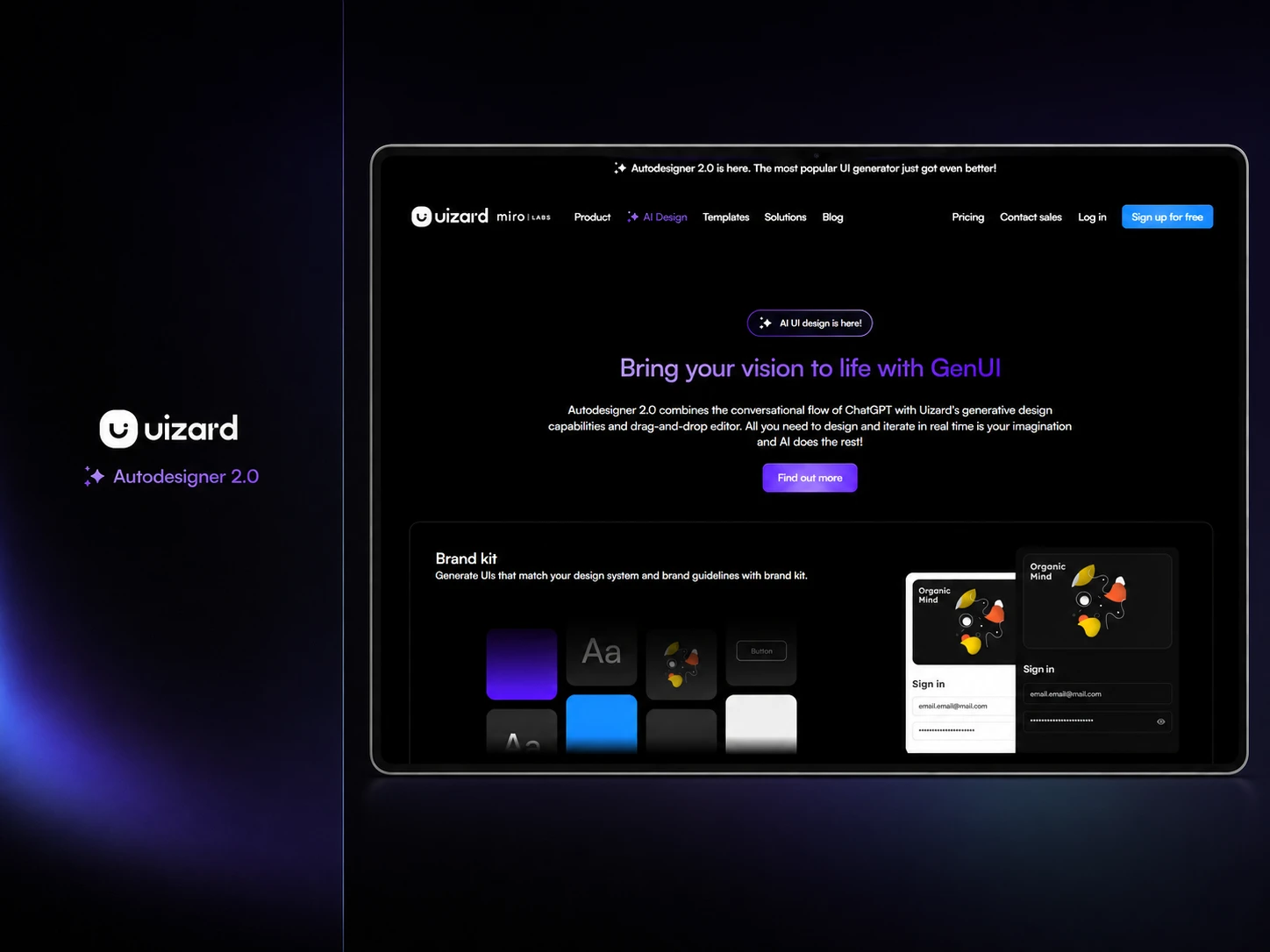
Uizard is particularly useful during early product ideation. Autodesigner 2.0 can generate multi-screen interactive prototypes, modify selected UI elements, create themes, scan screenshots or hand-drawn wireframes, and even provide AI-assisted design reviews. Paid plans also add developer handoff for individual React components and CSS.
Pricing
Free: 3 AI generations/month
Pro: $12/month, billed annually, with 500 AI generations/month
Business: $39/month, billed annually, with 5,000 AI generations/month
Enterprise: Custom pricing with unlimited AI generations
Reviews & Ratings
G2: 4.5/5 (45 reviews)
Capterra: 4.6/5 (193 reviews)
What We Like
It makes multi-screen ideation accessible even when you need a prototype, not production code.
5. Visily
Quick Facts
AI Usage Limit: Free: 600 credits first month, then 300; Pro: 3,000/editor/month
Best For: Generating editable UI screens and prototypes from prompts or visual references
Generation Limit: No fixed count; standard screens cost 30 credits, Deep Design costs 90
Export Options: Figma, React, Vue, HTML, JPG, PNG, and PDF
AI Models: Gemini 3 Pro powers Deep Design; standard model is not publicly specified
Version History: Pro retains 7 days; Business retains 30 days; Free has none
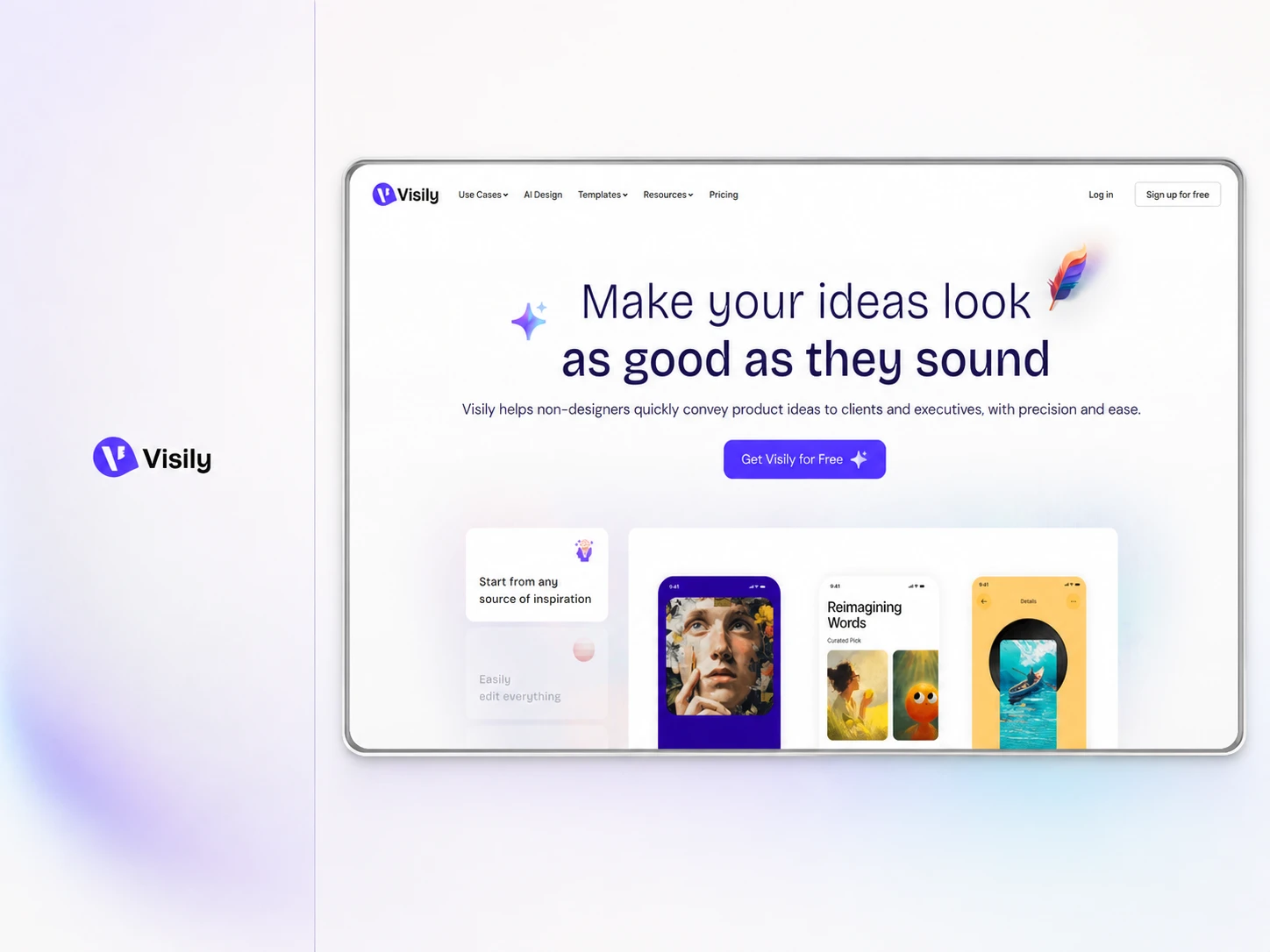
Visily combines AI generation with a more traditional editable design canvas. Its AI Assistant can generate screens, components, images, diagrams, and prototypes, while Plan Mode helps structure the idea before spending credits on a design. Paid users also get responsive code export and an MCP server for carrying Visily designs into coding agents.
Pricing
Free: 600 AI credits first month, then 300/month
Pro: $11/editor/month, billed annually, with 3,000 AI credits/month
Business: $29/editor/month, billed annually, with 10,000 AI credits/month
Extra Credits: Paid AI credit top-ups available on Pro and Business
Reviews & Ratings
G2: 4.4/5 (37 reviews)
Product Hunt: 4.7/5 (34 reviews)
What We Like
Its AI credits stretch across screens, prototypes, diagrams, images, and code generation.
6. Relume AI
Quick Facts
AI Usage Limit: Limited on Free; paid plans provide unlimited AI usage
Best For: Turning website briefs into structured sitemaps, wireframes, and visual directions
Export Options: Figma; Webflow, React, and HTML on higher plans
AI Models: Not publicly disclosed
Version History: Supports multiple sitemap versions; no published retention window
Relume approaches AI UI design from website structure first. Give it a company brief and goals, and it can generate the sitemap, page sections, copy, wireframes, and a reusable style direction before you move into detailed design. Its library now includes 1,500+ Figma and Webflow components, which makes the generated structure much easier to continue in an existing production workflow.
Pricing
Free: 1 project with 1 wireframe page
Starter: From $18/month, 1 project with up to 5 pages
Pro: From $40/month, unlimited projects and pages
Team: From $36/user/month, minimum 3 users
Reviews & Ratings
Product Hunt: 4.8/5 (25 reviews)
What We Like
It excels at turning a website brief into structured sitemaps and wireframes fast.
7. v0
Quick Facts
AI Usage Limit: Free includes $5 monthly credits; Plus includes $30 monthly credits
Best For: Turning prompts into functional web interfaces with production-ready frontend code
Generation Limit: Free plan allows 7 messages/day; paid plans are credit-based
Version History: Chat history plus a new version whenever Design Mode changes are applied
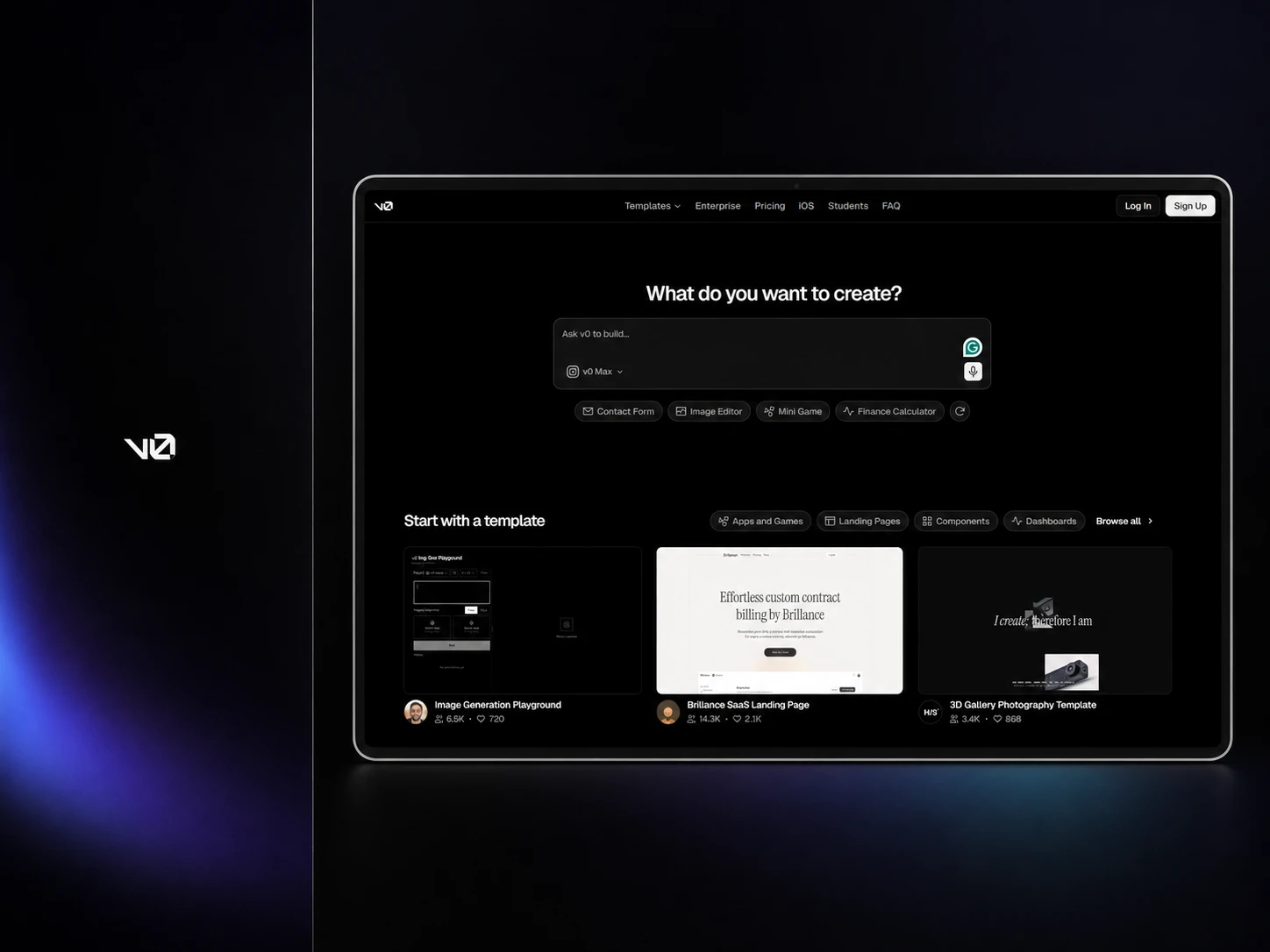
v0 sits somewhere between an AI UI generator and a development environment. You can generate an interface from text or images, visually adjust elements in Design Mode, edit the underlying code, connect databases, and deploy the finished application through Vercel. Its 2026 update also added a VS Code-style editor and deeper GitHub workflows.
It combines visual UI iteration, working code, and deployment in one workflow.
8. Lovable
Quick Facts
AI Usage Limit: Free gets 5 build credits/day, capped at 30/month; Pro starts with 100 monthly credits
Best For: Turning product ideas into functional full-stack web apps through conversation
Generation Limit: No fixed count; credit consumption changes with task complexity
Export Options: GitHub source code, published web apps
AI Models: Lovable Agent; underlying build model is not publicly disclosed
Version History: Built-in history with preview, bookmarks, and restore to earlier versions
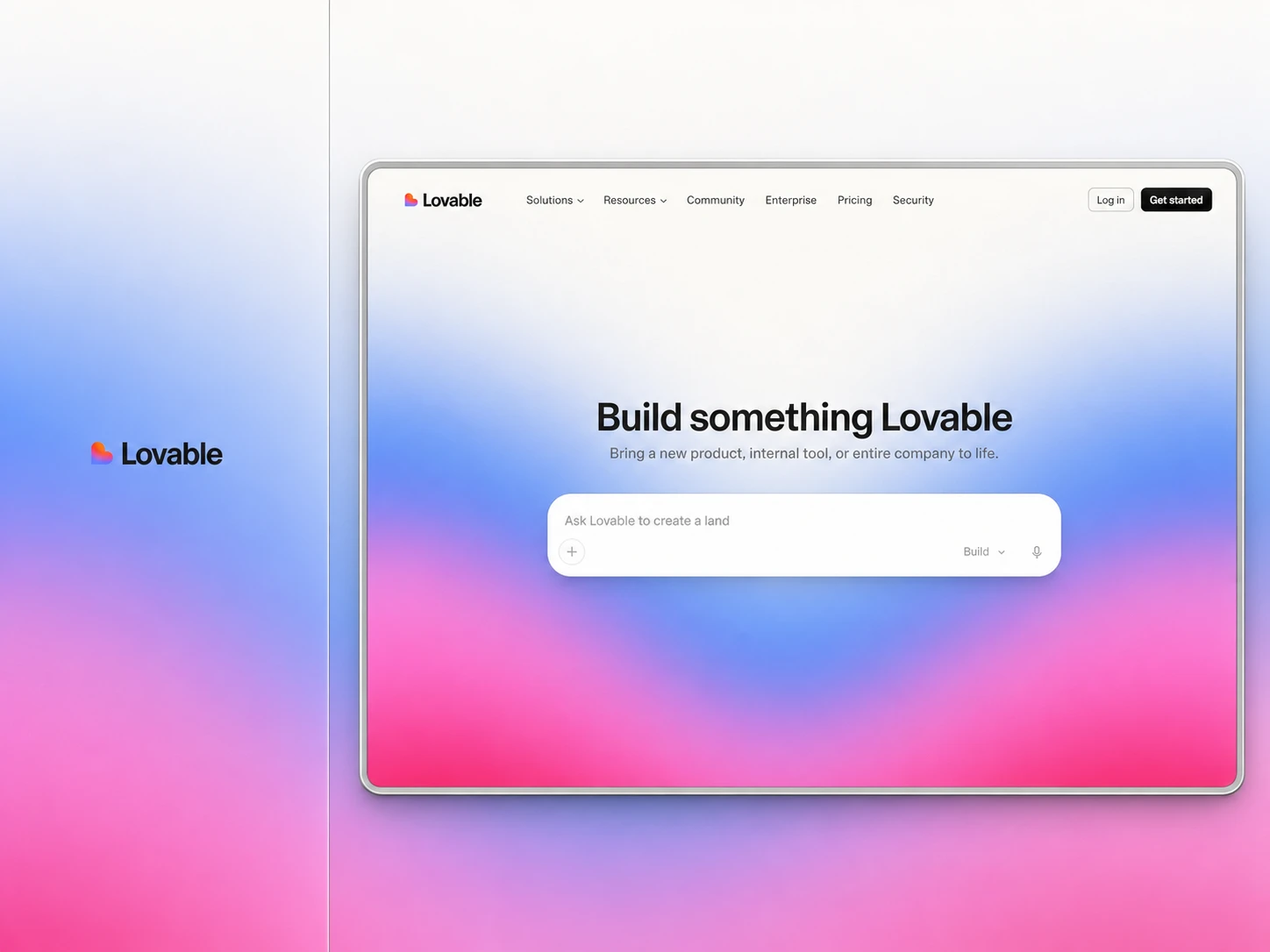
Lovable goes further than generating static UI. It can build the frontend, connect backend infrastructure, add authentication and databases, visually edit components, and sync the complete codebase with GitHub. Its credit system also covers building, hosting, and AI features used inside deployed apps.
AI Models: UX Pilot generation models plus custom models built from imported design systems
Version History: No public retention period currently documented
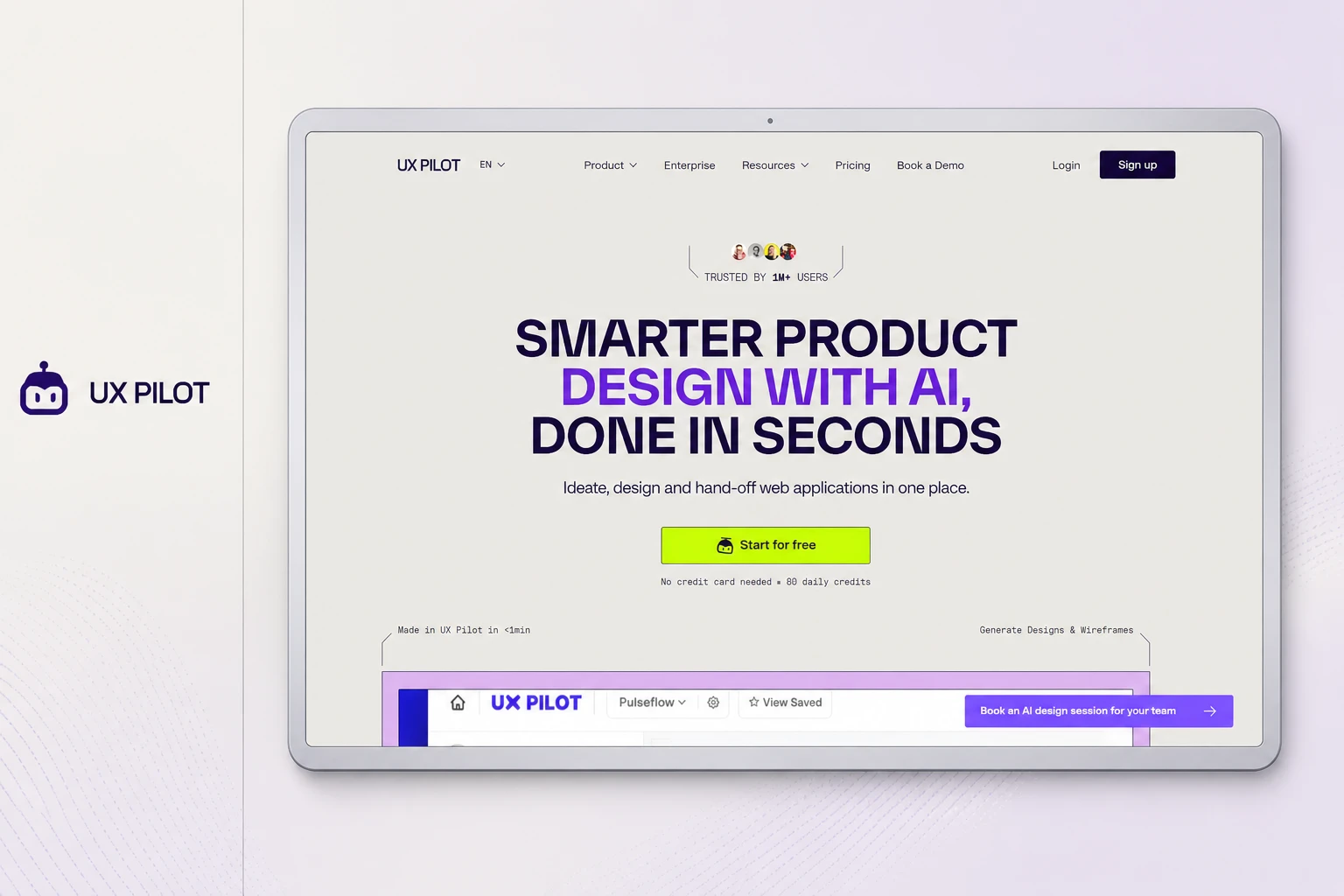
UX Pilot is more design-focused than most prompt-to-app builders. It can move from a sketch, screenshot, PDF, or PRD to wireframes and high-fidelity screens, generate multiple visual directions, map complete user flows, and apply imported Figma components through a custom design system.
It also adds features designers normally need after generation, including predictive heatmaps, automated design reviews, Figma integration, and code handoff.
Pricing
Free: 80 AI credits/day, no credit card required
Standard: From $12/month, 420 credits/month
Pro: From $22/month, 1,200 credits/month
Teams: From $31/user/month, 1,600 credits/user/month
Reviews & Ratings
G2: 4.2/5 (115 reviews)
What We Like
It covers ideation, UI generation, validation, and handoff, all within the design workflow.
10. Claude Design
Quick Facts
AI Usage Limit: Shares the same usage pool as Claude Chat, Claude Code, and Cowork
Best For: Creating branded interactive prototypes and exploring interface directions through conversation
Generation Limit: No separate design quota; usage depends on plan limits and project complexity
Export Options: ZIP, PDF, PPTX, HTML, Canva, Claude Code, and partner platforms
AI Models: Claude; Anthropic does not publish a separate Design-specific model list
Version History: Previous iterations can be saved and revisited within the project conversation
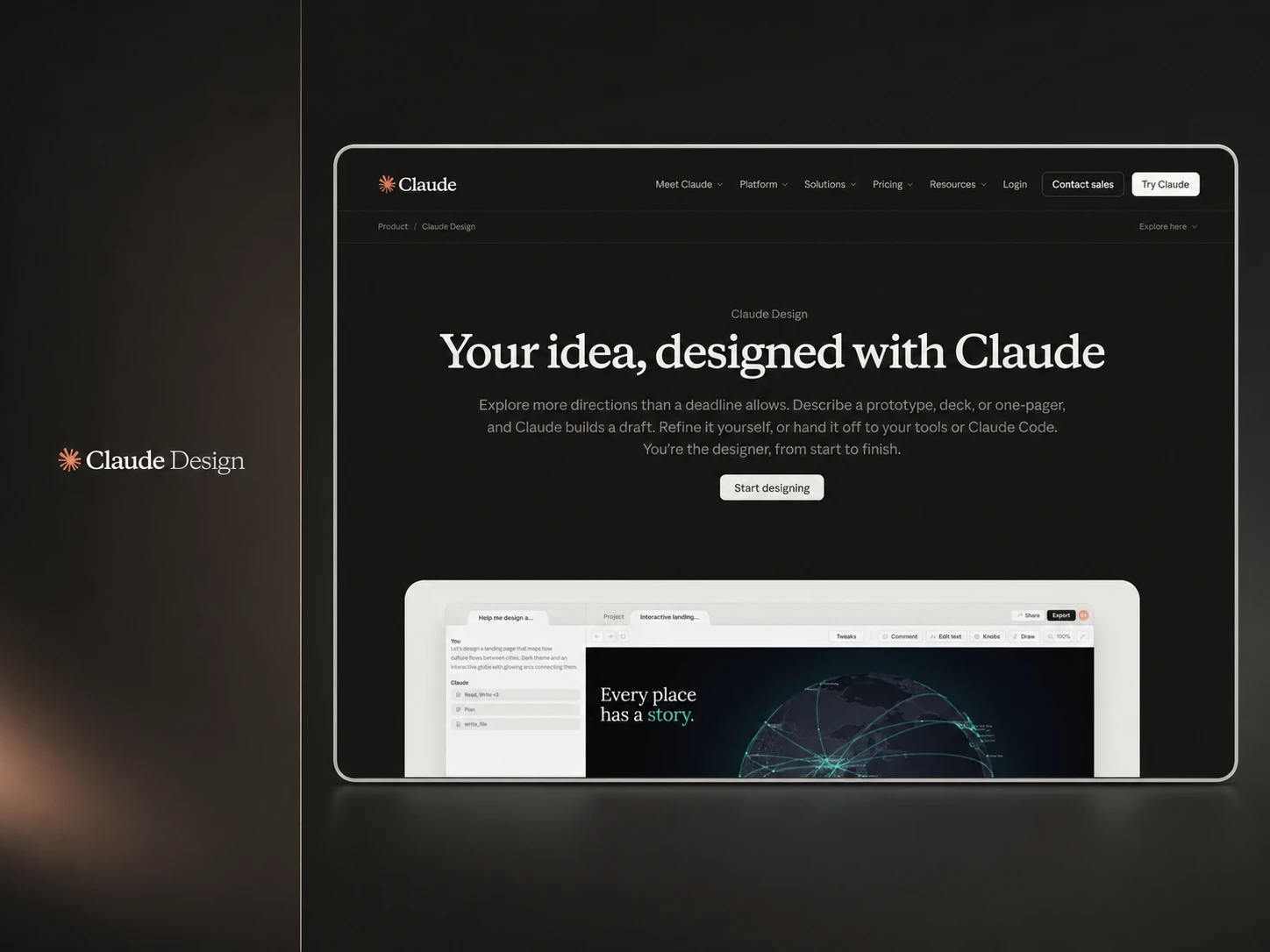
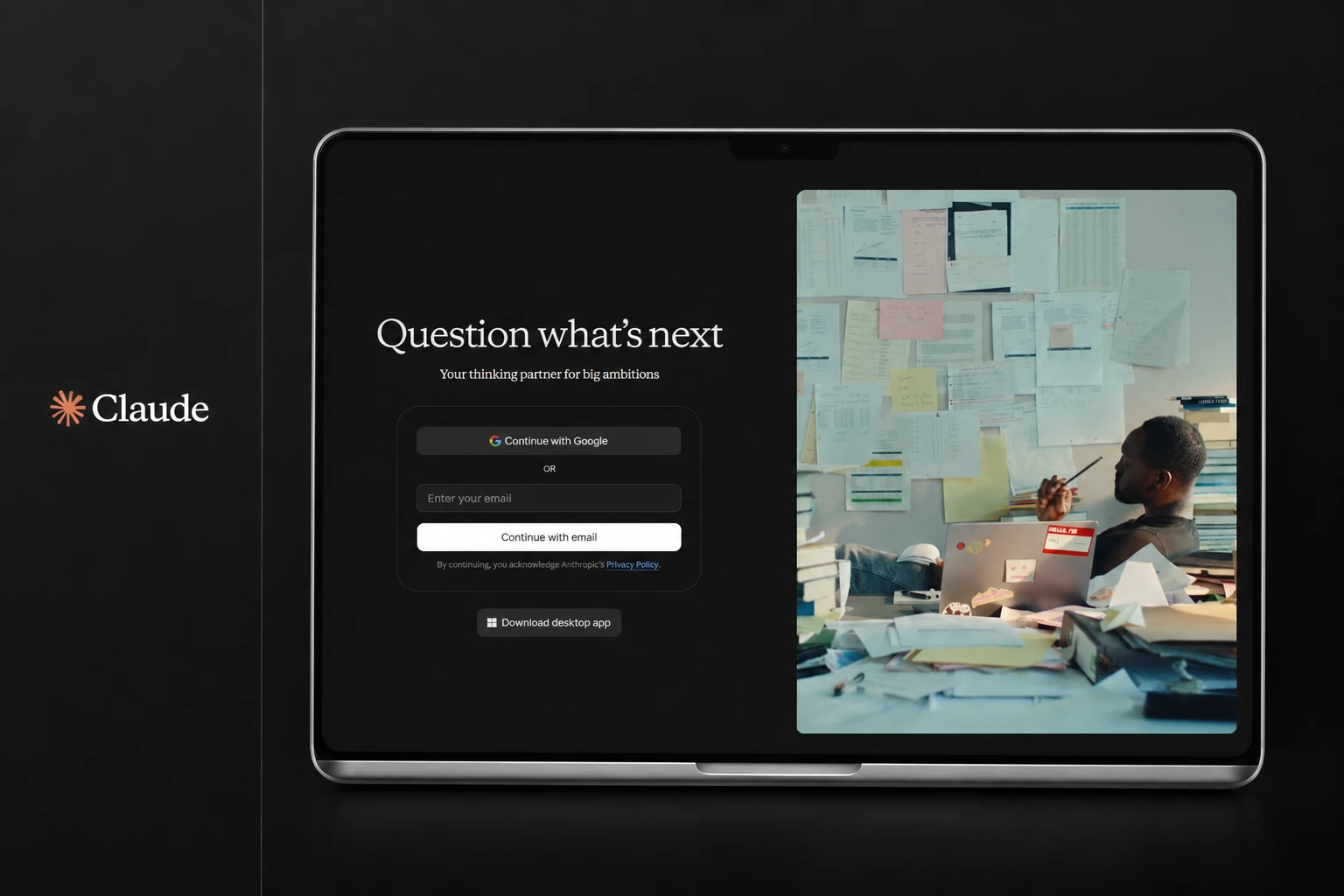
Claude Design turns Claude into a conversational design canvas. It can create interactive prototypes, mockups, presentations, microsites, and landing pages, then refine them through chat, inline comments, or direct canvas adjustments. A bigger advantage for product teams is design-system support. Claude can extract reusable components, typography, colors, and patterns from existing codebases, screenshots, presentations, or brand assets and use them across future generations.
Pricing
Free: Claude Free is available, but Claude Design is not listed as included
Pro: $20/month or $17/month billed annually, includes Claude Design
Max 5x: $100/month, 5x Pro usage
Max 20x: $200/month, 20x Pro usage
What We Like
Its design-system context makes generated concepts far more useful for established product teams.
4 Selected AI Tools for UX Research
If you are a UX-focused designer, design manager, or usability tester who needs to plan and organize research before starting UI design, these tools may be helpful.
11. Maze AI
Quick Facts
AI Usage Limit: No separate AI quota published; AI Moderator is available on Enterprise plans
Best For: Running usability studies and turning participant responses into structured research insights
Generation Limit: Up to 5 AI-moderated goals; Maze recommends no more than 500 sessions per study
Export Options: CSV, shareable reports, embeds, and PDF reports on Enterprise
AI Models: OpenAI and Anthropic LLMs, plus Deepgram for speech transcription
Version History: No built-in version control for live studies
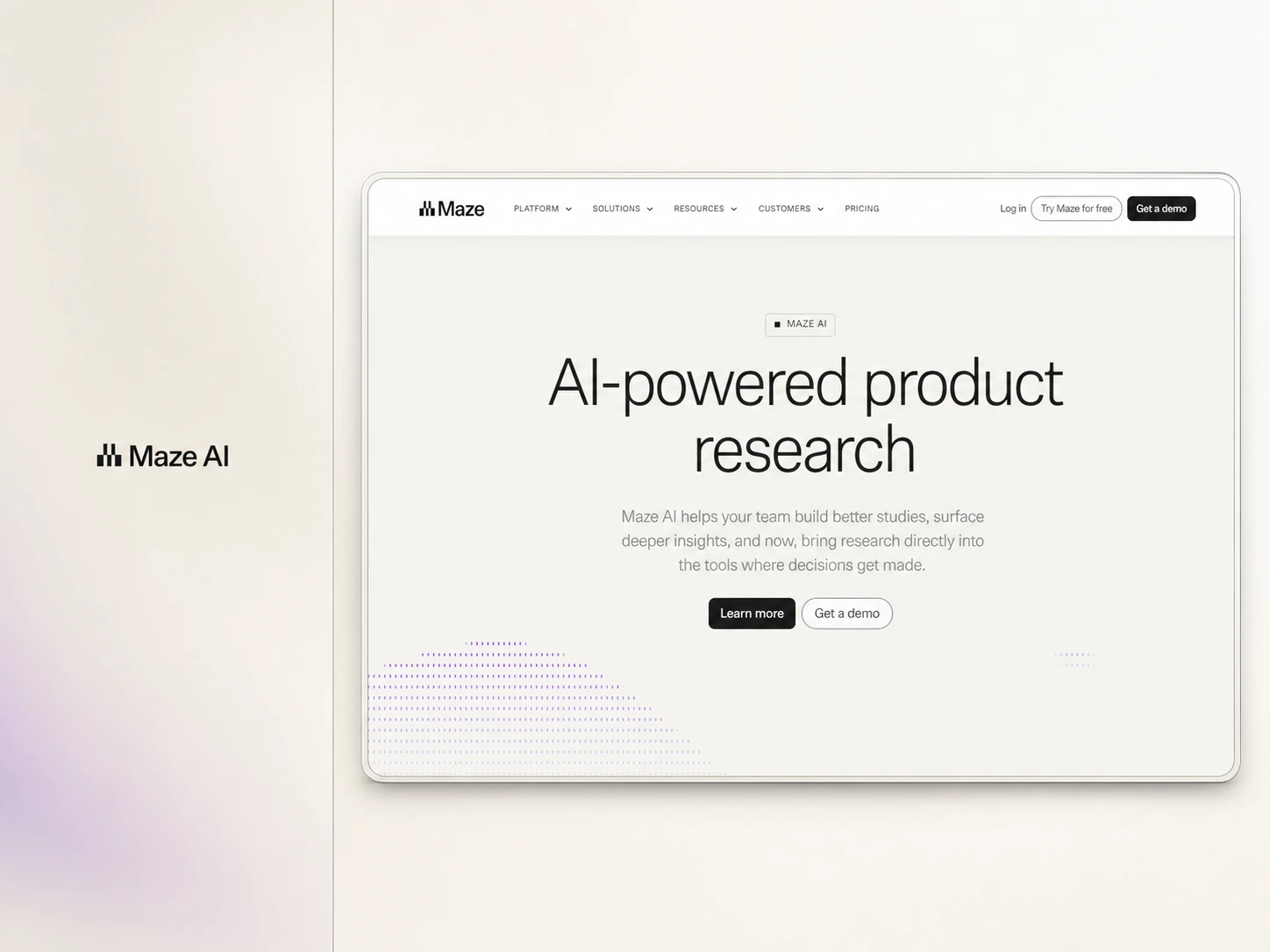
Maze is built specifically for product research rather than general-purpose AI analysis. It combines prototype testing, surveys, card sorting, automated reports, participant recruitment, and AI-assisted analysis in one workflow. New users also get a 30-day trial with up to three studies, which makes it easier to test the platform before committing.
Pricing
Free: $0, 1 study/month and up to 5 seats
Free Trial: 30 days, up to 3 studies with premium features
Enterprise: Custom pricing, includes AI-moderated interviews and all Maze AI features
Panel Credits: From $5 per credit
Reviews & Ratings
G2: 4.5/5 (111 reviews)
Capterra: 4.5/5 (10 reviews)
Product Hunt: 4.8/5 (5 reviews)
What We Like
It connects participant testing, AI analysis, and reporting without stitching together multiple research tools.
12. Miro AI
Quick Facts
AI Usage Limit: Free: 10 credits/month; Starter: 25/member; Business: 50/member
Best For: Synthesizing workshop notes, mapping journeys, and organizing collaborative UX research
AI Models: Claude, GPT-5, GPT-4.1, GPT-4o, Gemini, Imagen, and Stable Diffusion models
Version History: Automatic board backups stored for 90 days on supported paid plans
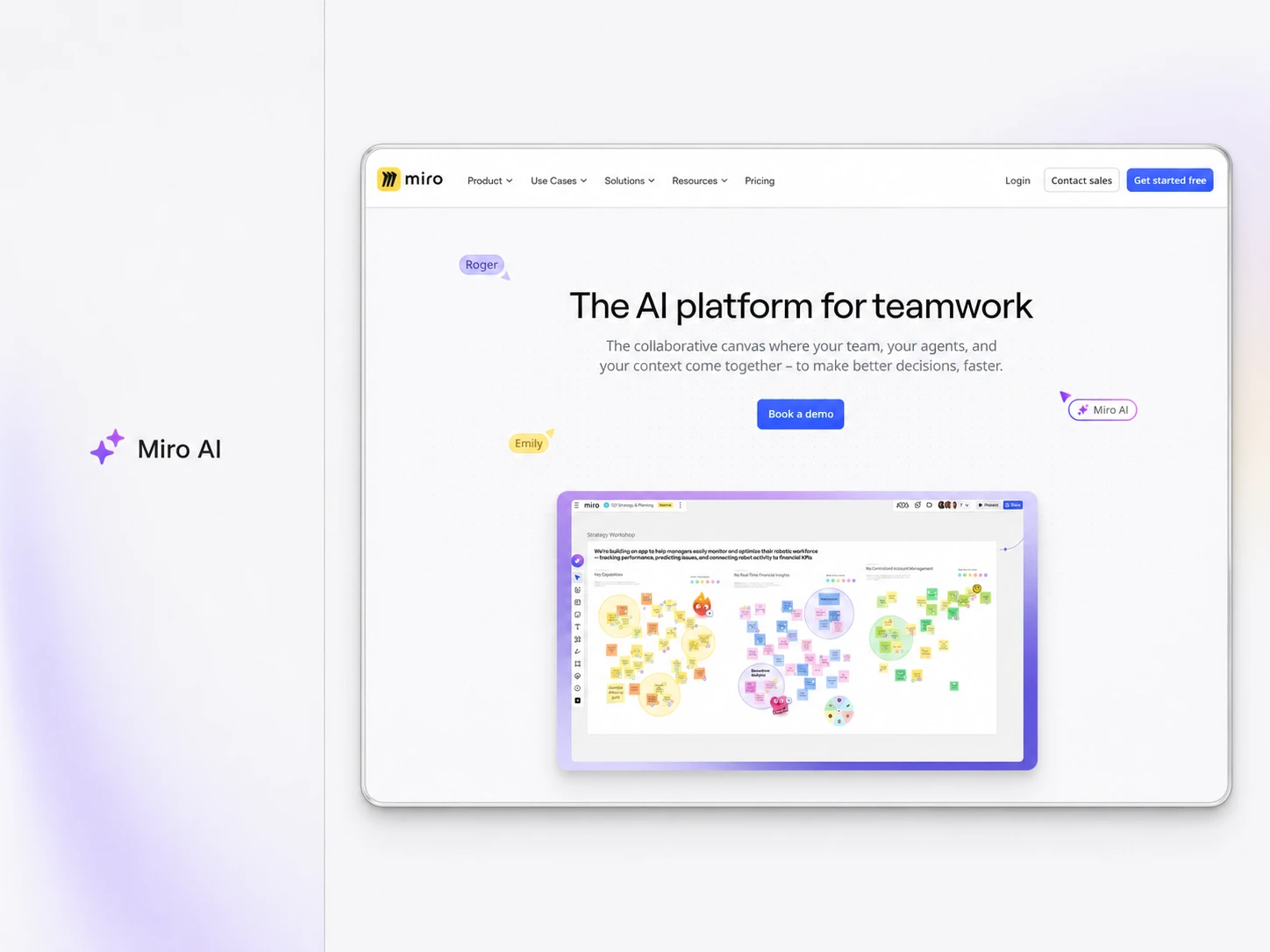
Miro AI is most useful when research is already happening on a collaborative canvas. It can summarize workshop content, cluster sticky notes, generate journey maps and diagrams, create prototypes, and turn scattered findings into structured outputs. Miro also offers 7,000+ templates and 250+ integrations, so teams can keep research close to their existing product workflow.
Pricing
Free: $0, 10 AI credits/month and 3 editable boards
Starter: $8/user/month, billed annually, 25 AI credits/user/month
Business: $16/user/month, billed annually, 50 AI credits/user/month
Enterprise: Custom pricing, starting from 2,500 pooled AI credits/month
Reviews & Ratings
G2: 4.6/5 (12,814 reviews)
Product Hunt: 4.9/5 (106 reviews)
What We Like
It turns messy collaborative research boards into structured findings without moving data elsewhere.
13. ChatGPT
Quick Facts
AI Usage Limit: Free includes unlimited everyday text chats; advanced tools have separate usage limits
Best For: Synthesizing interviews, clustering feedback, and turning raw research into recurring themes
Generation Limit: No fixed count; model, file, and advanced-tool limits vary by plan
Export Options: ZIP data export including chat history and related account data
AI Models: GPT-5.6 Luna on Free/Go; GPT-5.6 Sol and Sol Pro on eligible paid plans
Version History: Chats and Projects remain searchable; no dedicated research-document version history
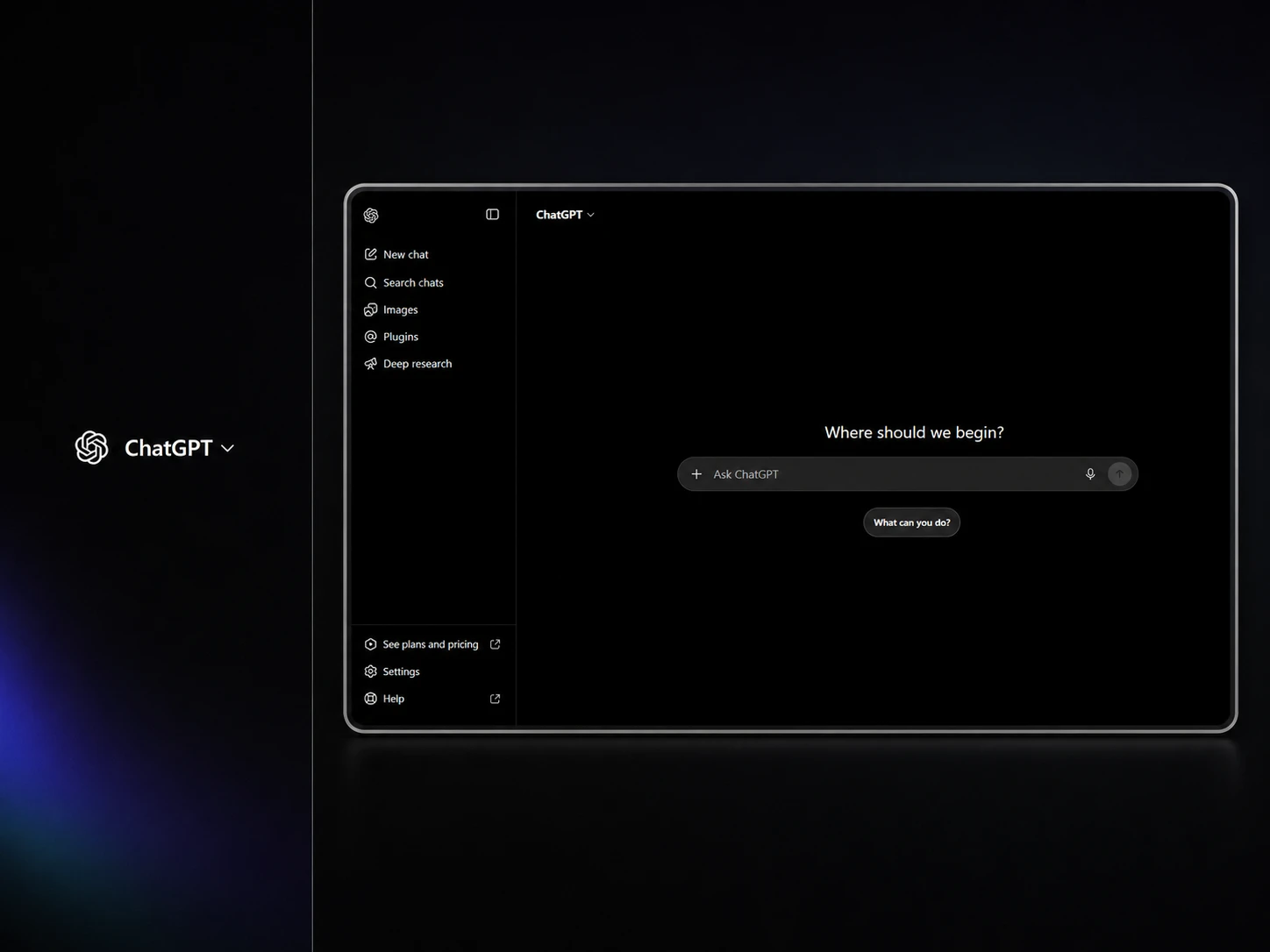
ChatGPT works well when you already have the research data and need help making sense of it. You can keep interviews, reports, instructions, and related chats inside Projects, then use the same context for synthesis, comparison, or follow-up analysis. Plus supports 25 files per project, while Pro supports 40, and users can create unlimited Projects.
Pricing
Free: $0, unlimited everyday text chats with separate limits for tools
Go: $8/month in the US, with expanded uploads, images, and tool usage
Plus: $20/month, with higher limits and GPT-5.6 advanced reasoning
Pro: $200/month, with maximum access and GPT-5.6 Sol Pro
Reviews & Ratings
G2: 4.6/5 (2,221 reviews)
Product Hunt: 4.8/5 (704 reviews)
What We Like
It handles large amounts of mixed research material without requiring a dedicated research platform.
14. Claude
Quick Facts
AI Usage Limit: Pro offers at least 5× Free usage per session and resets every five hours
Best For: Analyzing long interviews, research repositories, and complex qualitative datasets
Generation Limit: No fixed count; usage varies by model, context length, files, and tools
AI Models: Claude Sonnet 5, Opus 5, Fable 5, and other plan-available Claude models
Version History: Artifacts keep versions; editing earlier messages creates separate conversation branches
Claude is particularly useful when research involves a lot of context. Its Projects can store interviews, notes, reports, and supporting documents, while RAG can expand project knowledge capacity by up to 10× when the content grows beyond the normal context window. That makes it useful for longitudinal studies or research repositories with many source files.
Pricing
Free: $0, limited usage with session limits resetting every 5 hours
Pro: $20/month or $200/year, at least 5x Free usage per session
Max 5x: $100/month, 5x Pro usage per session
Max 20x: $200/month, 20x Pro usage per session
Reviews & Ratings
Product Hunt: 5.0/5 (968 reviews)
G2: 4.6/5 (215 reviews)
What We Like
Its large-context Projects make deep qualitative analysis easier across many interviews and research files.
2 Selected AI Tools for Design Assets
If you need to create images, illustrations, graphics, or other visual assets for a product interface, these tools can speed up the workflow. They are not dedicated UI/UX design tools, but they can support the design process by helping you create visual assets that enhance the user experience and make it more engaging and effective.
15. Canva AI
Quick Facts
AI Usage Limit: Free: up to 200 Standard or 20 Premium uses/month; Pro: up to 2,000 Standard, 200 Premium, or 20 Ultra uses/month.
Best For: Creating and refining graphics, images, videos, and branded assets in one workspace
Generation Limit: No fixed output count; generations draw from a shared monthly AI allowance
Export Options: PNG, JPG, PDF, SVG, MP4, and GIF
AI Models: Canva Design Model, Leonardo Phoenix, OpenAI and Anthropic models, plus Google Veo 3 for video.
Version History: Available on Pro and supported team plans for reviewing and restoring previous design versions.
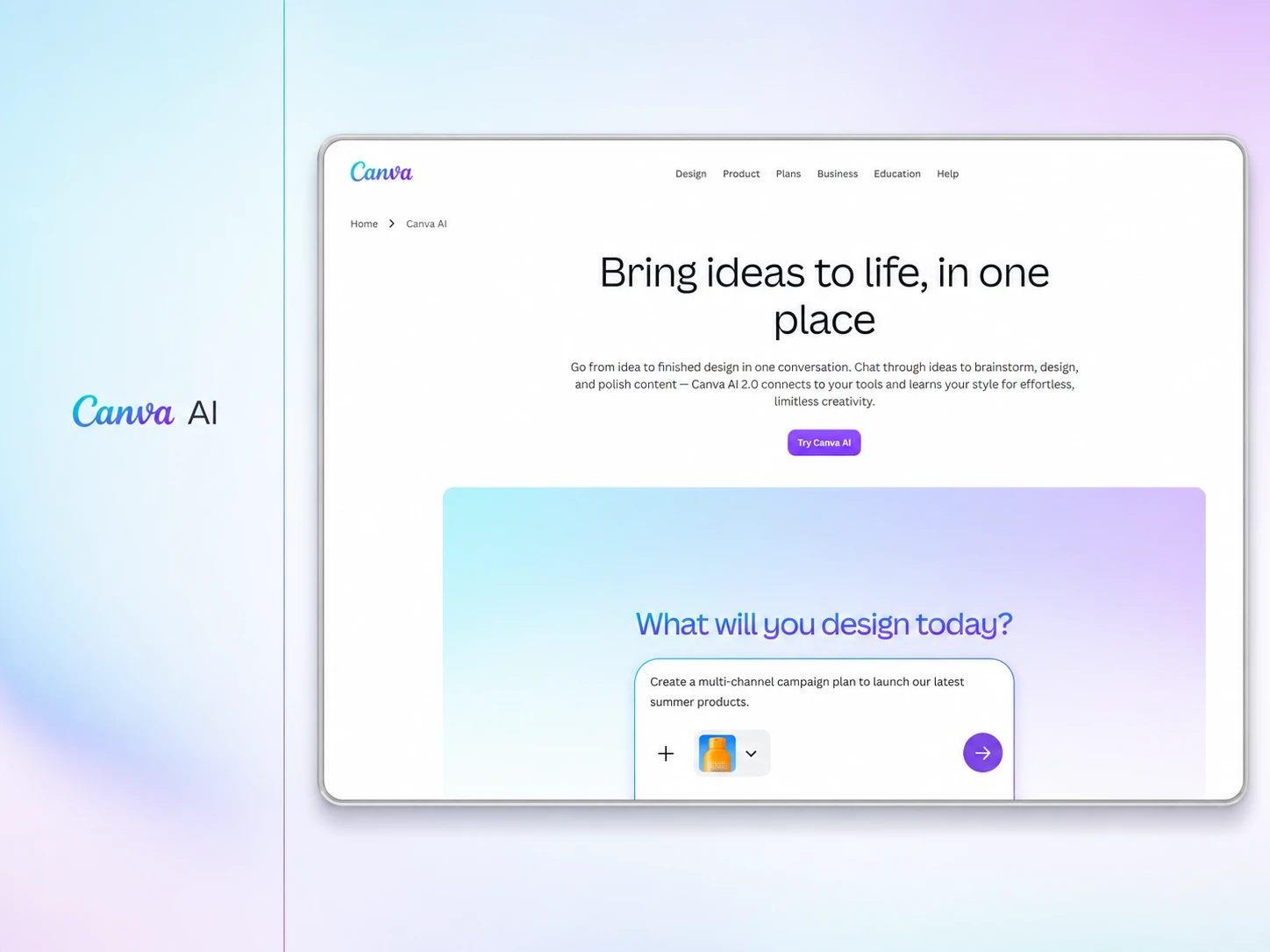
Canva AI combines asset generation with an editor where you can immediately resize, remove backgrounds, animate, apply Brand Kits, or turn generated content into a complete design. Canva AI 2.0 also produces layered, editable outputs instead of leaving designers with a flat generated image.
Pricing
Free: $0, up to 200 Standard or 20 Premium AI uses/month
Pro: $180/year, up to 2,000 Standard, 200 Premium, or 20 Ultra AI uses/month
Business: $250/user/year, up to 4,000 Standard, 400 Premium, or 40 Ultra AI uses/month
Enterprise: Custom pricing, with up to 4,000 Standard, 400 Premium, or 40 Ultra AI uses/month
Reviews & Ratings
G2: 4.7/5 (7,674 reviews)
What We Like
Generated assets stay editable, making them easier to adapt for real product interfaces.
16. Adobe Firefly
Quick Facts
AI Usage Limit: Standard: 2,000 credits/month; Pro: 4,000; Pro Plus: 10,000; Premium: 50,000.
Best For: Generating and editing polished images, vectors, video, and audio assets
Generation Limit: Unlimited standard image generations on paid plans; premium generations consume monthly credits.
Export Options: JPG and PNG for images; MP4 for video, with Adobe app handoff.
AI Models: Firefly Image Model 5 plus models from Google, OpenAI, Black Forest Labs, Runway, Luma, and others.
Version History: Automatically stores generated images, video, and audio in Generation History using Adobe Cloud storage.
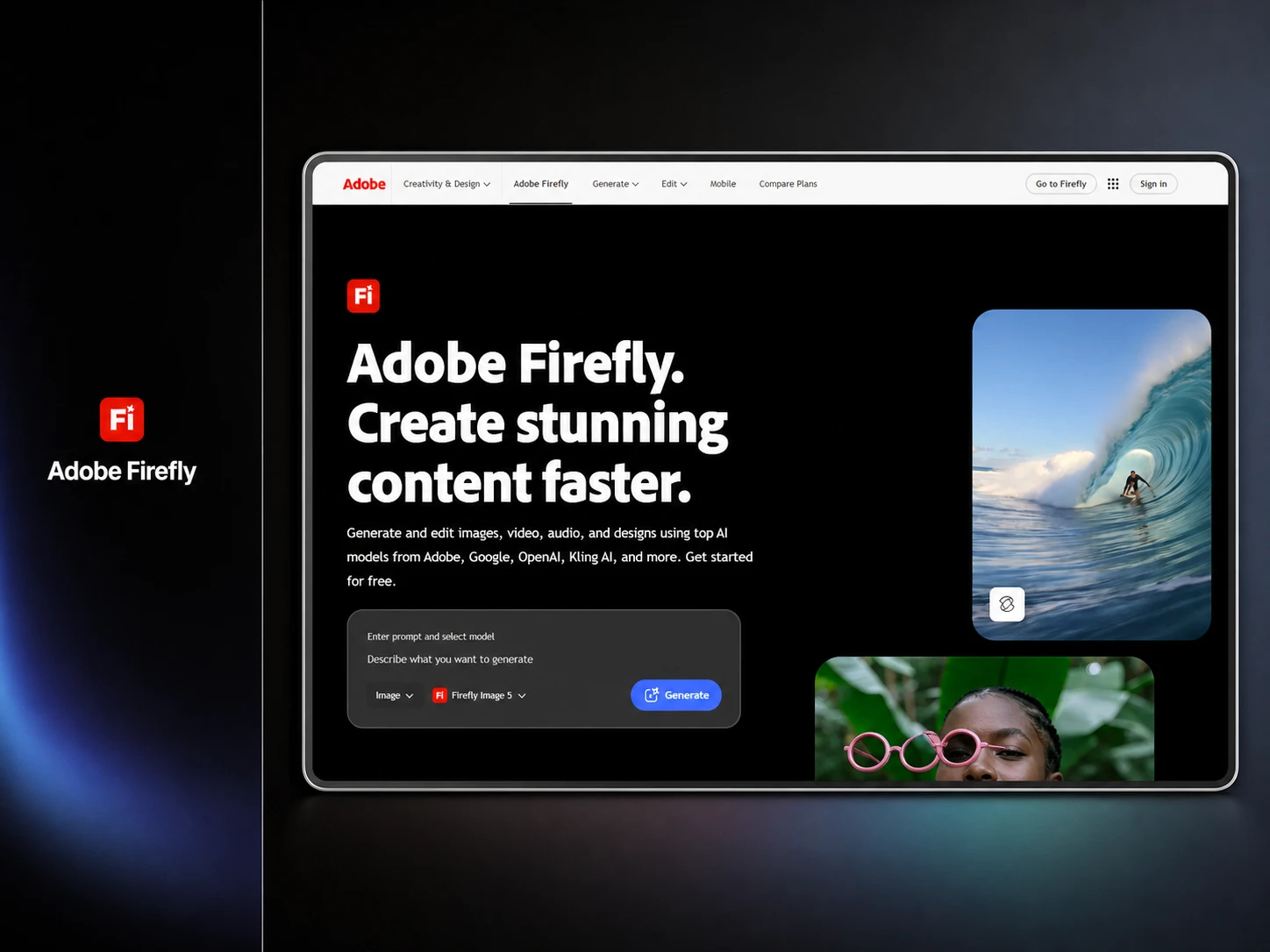
Firefly is useful when generated assets need more production work afterward. You can move outputs directly into Photoshop or Adobe Express, use Generative Fill and Expand, generate vectors, video, sound effects, and access partner models without switching between several separate AI platforms.
Pricing
Free: $0, limited daily generations that reset each day
Pro Plus: $49.99/month, 10,000 generative credits/month
Premium: $199.99/month, 50,000 credits plus unlimited Firefly Video Model access
Reviews & Ratings
G2: 4.4/5 (359 reviews)
What We Like
Its Creative Cloud integration makes AI assets much easier to refine for production.
2 Selected IDEs with Integrated Visual Editors
These tools sit closer to development than traditional design software. They combine AI-assisted coding with visual editing, so designers and developers can adjust interfaces, inspect components, and move from design decisions to working products faster.
17. Google Antigravity IDE
Quick Facts
AI Usage Limit: Free users get basic five-hour and weekly limits; paid Google AI plans raise quotas
Best For: Building and iterating interfaces with AI agents across code, browser, and development workflows
Generation Limit: No fixed count; usage depends on five-hour and weekly model quotas
Export Options: Local codebase, Git worktrees, code diffs, diagrams, images, and browser recordings
AI Models: Gemini 3.7 Flash, Gemini 3.6 Flash, Gemini 3.5 Flash, Gemini 3.1 Pro, Claude Sonnet/Opus 4.6, GPT-OSS-120B
Version History: Conversation history with rewind and fork workflows; Git handles permanent code versioning
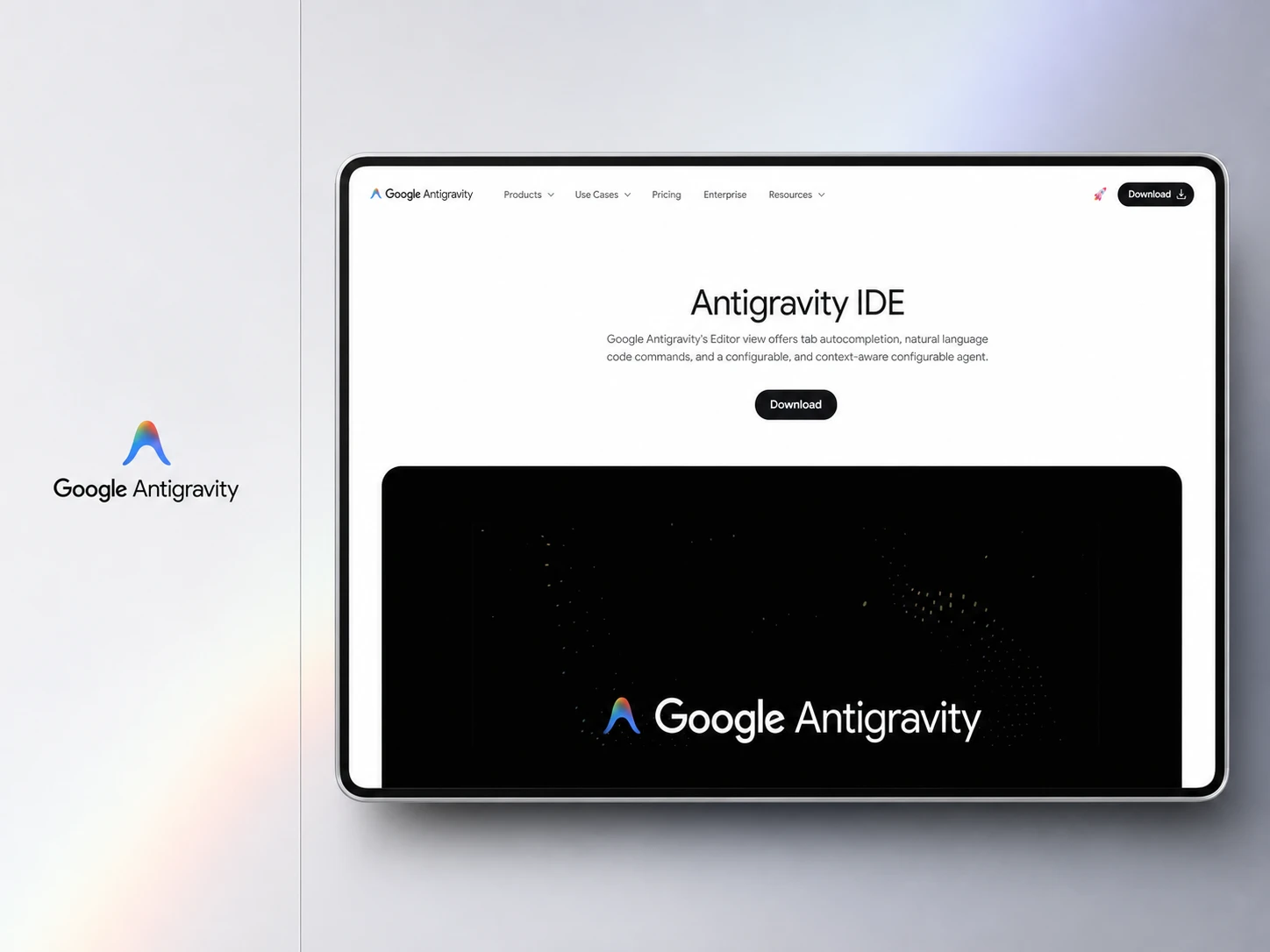
Antigravity IDE gives AI agents access to the editor, terminal, and browser, letting them write code, launch an interface, test it visually, and make further changes without leaving the development environment. It also generates reviewable artifacts such as implementation plans, code diffs, diagrams, images, and browser recordings.
One distinction matters: Google’s newer Antigravity 2.0 is a separate agent-management desktop app, not an IDE. The Antigravity IDE remains another product surface, so designers specifically looking for an IDE workflow should use that distinction when comparing it with Cursor.
Pricing
Free: $0, unlimited Tab and Command requests with basic weekly Agent limits
Google AI Pro: $20/month, with higher rate limits and a flexible AI credit pool
Google AI Ultra: From $100/month, with higher Antigravity usage limits
Top Ultra Tier: $200/month, designed for heavier daily Agent usage
Reviews & Ratings
Product Hunt: 4.6/5 (19 reviews)
What We Like
Agents can build, test, and verify interfaces across code and browser in one workflow.
18. Cursor
Quick Facts
AI Usage Limit: Hobby has limited Agent requests; Pro includes $20 third-party model usage plus generous Cursor-model usage
Best For: Visually refining working interfaces while AI agents update the underlying production code
Generation Limit: No fixed count; usage varies by selected model, tokens, and plan allowance
Export Options: Local source code, Git/GitHub workflows, generated assets, and shareable canvases
AI Models: Composer 2.5, Cursor Grok 4.6/4.5, Claude, Gemini, GPT-5.6, and other frontier models
Version History: Automatic local checkpoints before significant Agent edits, with one-click restore
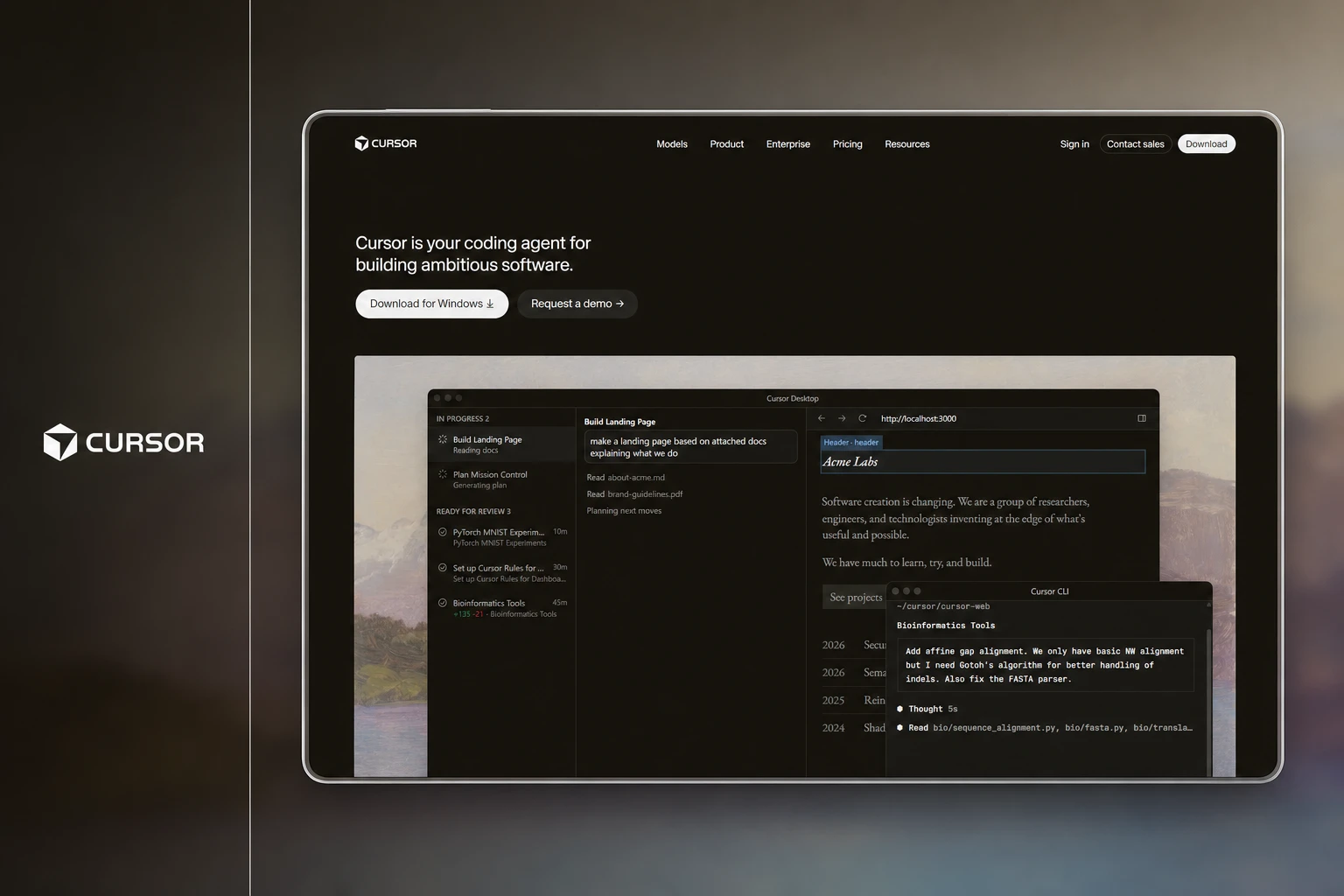
Cursor is especially relevant to designers because its Design Mode makes frontend editing more visual. You can click interface elements, draw over areas, use voice instructions, adjust layouts and styles, then have Cursor update the actual code behind those changes.
Its visual editor can also manipulate layouts through drag-and-drop, expose React component properties, and provide controls for typography, grids, colors, and CSS. Cursor automatically creates checkpoints during Agent work, so experimental UI changes can be rolled back without relying on Git for every iteration.
Pricing
Hobby: Free, limited Agent requests and core features
Pro: $20/month, includes $20 of third-party model usage
Pro+: $60/month, includes $70 of third-party model usage
Ultra: $200/month, includes $400 of third-party model usage
Teams: $40/user/month, with Premium seats at $120/user/month
Reviews & Ratings
G2: 4.5/5 (67 reviews)
What We Like
Design Mode makes frontend iteration visual without separating the interface from its production code.
How to Choose the Right AI Design Tools for Your Workflow
With hundreds of AI tools available, finding the right one can be time-consuming, overwhelming, and even contribute to procrastination. Don't worry. Check how our team finds the best one:
1. Identify the Bottleneck First
Don’t start with the tool. Start with the task that is slowing you down: UI generation, research synthesis, asset creation, or development. Don't just read; take notes, and please write this on your paper.
2. Match the Tool to That Stage
Choose tools based on where they fit in your workflow. A UI generator won’t solve a research problem, and a research tool won’t help much with production-ready interfaces. Start with our recommended tool and evaluate whether it meets your needs. If it isn’t a good fit, you can always try another option.
3. Test the Output Before Paying
Use the free plan or trial first. Check whether the generated UI, research summary, asset, or code is actually usable without heavy rework.
4. Check Integration With Your Existing Stack
Prioritize tools that work with what you already use, such as Figma, GitHub, design systems, MCP servers, or development environments.
5. Compare Limits, Not Just Pricing
A $10 plan can become expensive if credits disappear after a few generations. Check AI usage limits, export restrictions, and team allowances before subscribing.
6. Avoid Overlapping Tools
You usually don’t need three tools that solve the same problem. Pick one strong option for each major workflow need, then add another only when there’s a clear gap.
AI Design Tools: Key Trends to Watch in 2026
AI design tools are moving beyond simple prompt-to-UI generation. The bigger shift in 2026 is how deeply AI is becoming part of the actual product development workflow.
Here are the trends we think matter most.
1. AI Agents Are Moving Onto the Design Canvas
Designers are no longer just prompting AI and waiting for an output. Tools like Figma and Google Stitch now let agents work directly on the canvas while designers steer, edit, and refine the result in real time.
Figma
Figma’s 2026 AI report found that 41% of product builders say AI is already changing how their teams collaborate, up from just 7% two years earlier.
2. Design and Code Are Becoming One Workflow
The old process of design-first, handoff-later is weakening.
Figma reports that 41% of designers now participate in development, almost double the 21% reported a year earlier. At the same time, visual IDEs and AI builders are letting designers modify working interfaces without separating the canvas from production code.
3. Design Systems Are Becoming AI Context
Generating a screen is easy. Generating one that actually follows your components, variables, patterns, and brand rules is harder. That’s why MCP, reusable design systems, and contextual AI are becoming more important. Instead of giving AI a generic prompt, teams can increasingly give agents access to the same design rules developers and designers already use.
4. Visual Editing Is Replacing Prompt-Only Iteration
Prompting is fast, but describing every small spacing, typography, or layout change in text gets frustrating.
Newer tools are combining prompting with direct manipulation, properties panels, annotations, and visual editing. That gives designers AI speed without giving up precise control over the final interface.
And designers seem to be responding well to that shift. In Figma’s 2026 designer survey, 91% said AI tools improve their designs, while 89% said they help them work faster.
Frequently Asked Questions
Are AI design tools free to use?
Many are, but usually with limits. Free plans often restrict AI credits, generations, projects, exports, or access to advanced models. If you only want to test a workflow, free plans are usually enough. For regular client or product work, you’ll probably need a paid plan.
Can AI design tools work with existing design systems?
Yes, but the level of support varies. Tools like Figma, Claude Design, Visily, and Relume can work with existing components, styles, brand rules, or design-system context. MCP support is making this even more useful because AI agents can increasingly access the same design resources your team already uses.
Will AI replace UI/UX and product designers?
Not completely. AI is getting very good at generating screens, variations, assets, and code. But it still doesn’t reliably understand business priorities, user behavior, accessibility trade-offs, or why one design decision is better than another. The designer’s role is shifting from creating every element manually toward directing, evaluating, and refining AI-generated work.
Can I use AI-generated designs commercially?
Often yes, but don’t assume it. Commercial-use rights depend on the tool, plan, generated content, and any third-party model or asset involved. Before publishing client work, check the platform’s current terms for ownership, licensing, trademarks, and copyright restrictions.
What should designers check before using AI tools for client work?
Check more than output quality. Review commercial-use rights, data privacy, training policies, export options, design-system compatibility, security requirements, and AI usage limits before uploading client information or integrating a tool into your workflow. A tool that saves 30 minutes isn’t worth it if it creates a privacy or ownership problem later.
Nasir Uddin is Co-founder and CEO of Musemind, where he leads strategy, partnerships, creative direction, team growth, and global expansion. With over a decade in UX and product design, he writes for founders and product teams building scalable digital experiences.
UI UX design Inspiration right in your inbox
Thank you! Your submission has been received!
Oops! Something went wrong while submitting the form.